Handing Frontend Checks Over to AI with MSW
· dev· 12 min read
At work I’m building a new product, and these days AI writes a large share of the frontend code. Hand it the requirements and a screen appears in no time. Sometimes I leave several features with it at once and go do something else.
Features didn’t start shipping much faster, though. The code came quickly, but checking that the code was right was still a person’s job. The bottleneck had only moved from writing code to checking it.
This post is about what I changed to hand that checking to AI, and what it did to development speed and the cost of communication.
How a feature ships
A feature gets built roughly like this.

The PM writes the requirements, and a developer analyzes them, writes the code, checks it and deploys it to the dev server. Once QA and designers have checked it, it goes to prod and out to users.
What AI changed is the “write code” box in the middle. The AI builds, checks itself with tests and type checks, and fixes what’s wrong, looping on its own. That box really did get faster.
But there are two places after it where work comes back: when the developer checks it, and when QA checks it. The reason is the same in both. It’s hard to set up the situation you want to check.
Bottleneck 1: situations are hard to reproduce
Take a coupon list screen. The requirements:
- Show the coupons as a list.
- With more than ten, show the first ten and a More button.
- With no coupons at all, show the empty state.
- Mark an expired coupon as “Expired”.
To know this screen is right, you have to see the same screen in at least these six situations.
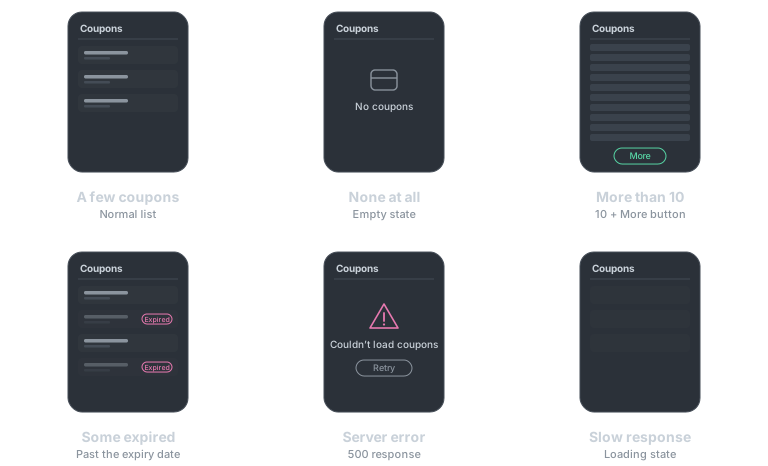
Setting these up for real is hard.
The backend isn’t there yet. It’s a new product, so the backend is being built at the same time. We agree on the response shape up front, but the real API often lands later than the frontend. So I build the whole screen and only wire it up properly once the API exists, and integration testing always piles up at the very end.
Even with a backend, setting up these situations is hard. To see the empty state I’d have to delete every coupon on my account, and to get past ten I’d have to issue a pile of them. On a shared dev server that breaks someone else’s work. Errors and slow responses can be faked with DevTools, but only by hand, every time, and not in a form I can pass to someone else.
The AI can’t see these situations. The AI writes the code and says “Done.” The types check and the tests pass. But nobody knows whether the screen really shows the empty state when there are no coupons until that situation is actually on screen. That check was still up to me.
Leave several features with the AI at once and there’s even more to check. Fixing the coupon screen breaks the points screen next to it: a regression. Requirements also get fuzzy where they overlap. Say a new requirement arrives later: “move expired coupons to the end of the list.” With twelve coupons, three of them expired, do the expired ones belong in the first ten, or behind the More button? You only notice questions like that once the situation is on screen, and only then can you ask the PM.
Design was different. With Figma MCP, the AI reads the design directly, compares it with the screen that comes up, and fixes spacing and color. The AI could verify how a single screen looks on its own, so why not how it behaves across situations?
Bottleneck 2: features are hard to check
Once it’s on the dev server, QA and designers check that it works as specified. The same problem comes back.
QA needs to check the same coupon situations. But the dev server only has whatever data it has right now. When QA says “I want to check what it looks like with no coupons,” someone has to set that up, and that someone is usually a developer. Same when a designer says “I want to see whether the error screen matches the design.”
So the easy situations get checked, and the hard ones tend to slip through as “the developer must have looked at that.” That’s where the bugs come from.
And when someone does find something odd, it’s hard to hand over the situation as it was.
The expired label on the coupon list looks wrong.
A message like that starts with questions. Which account, how many coupons, when did you see it? By then the data has changed or the clock has moved on, and often it looks fine when you open it again. If you can’t reproduce it you can’t fix it, or confirm the fix. Only after a few rounds of messages do we finally look at the same screen.
I brought in MSW, but checking the client worked the same as before
To build the frontend on its own, fast, without waiting for the backend, I brought in MSW. MSW intercepts the requests the browser sends and answers with responses you defined in advance. Write handlers that follow the agreed response shape and you can build the screen all the way through with no API.
http.get('/coupons', () => HttpResponse.json(coupons))I’d used MSW four years ago too. Back then I had no AI to help, so I wrote every handler and all the mock data by hand, and that took a lot of time. Every new API meant a new handler, and every change to a response shape meant fixing the mock data along with it. Now I hand the AI the agreed response shape and the handler comes right back. Writing them takes almost no time anymore.
That took care of waiting for the backend. But this handler gives only one response at a time. To see the empty state I change coupons to []; to see an error I change it to return a 500. When I’m done I have to change it back.
The way I worked, changing the situation meant editing handler code, and that was the common cause of both bottlenecks.
- It’s hard to hand off to the AI. Editing a handler to check something and reverting it afterwards becomes a task of its own. Forget to revert and that’s a bug in itself. And to check that last week’s empty state still works, you have to make the same edit again.
- It’s hard to share between people. QA and designers can’t edit the code. And even a developer can only describe “that situation” in words.
I gave each situation a name
The fix is simple. Give an API several responses and name each one. I’ll call a named response a scenario.
export default {
  id: 'getCoupons',
  label: 'Coupon list',
  path: '/coupons',
  handler: [
    { scenario: 'OK', handler: http.get('/coupons', () => HttpResponse.json(coupons)) },
    { scenario: 'Empty', handler: http.get('/coupons', () => HttpResponse.json([])) },
    { scenario: 'Many', handler: http.get('/coupons', () => HttpResponse.json(manyCoupons)) },
    { scenario: 'Server error', handler: http.get('/coupons', () => new HttpResponse(null, { status: 500 })) },
  ],
}
Once a situation has a name, it has a link. The six situations from earlier now each open from one link, like these.
/?cue=getCoupons:Empty                         no coupons at all
/?cue=getCoupons:Many                          more than ten coupons
/?cue=getCoupons:Server error,delay:1500       an error after 1.5 seconds
/?cue=time:2026-03-01T00:00:00Z                after the coupons' expiry date
/?cue=offline                                  API requests fail like a network error
Change the link, not the code, and the situation changes. It isn’t only server responses: network conditions like delay and offline, and the current time, are picked the same way. No more waiting for a coupon’s expiry date to pass to see the expired label.
Writing separate mock data for every scenario sounds like work, but that isn’t a burden either. The AI writes it from the requirements, along with the handler.
The library I built on this structure is cuesheet.
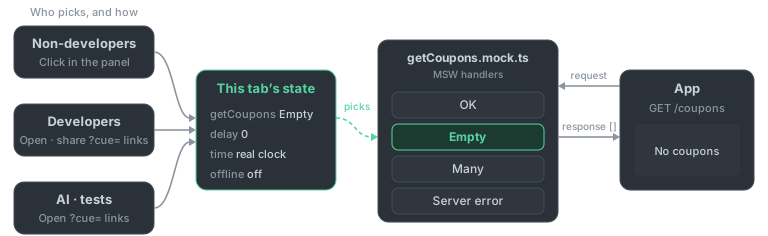
- One file per API. Each API gets its own file, like
getCoupons.mock.ts, holding an array of MSW handlers, one per scenario. - One state per tab, changed in whatever way suits the person. Which scenario each API answers with, plus delay, time and offline, all live in one state, and every request the app sends picks its response from that state.
- Non-developers like QA, designers and PMs pick with a click in the panel in the corner of the screen. They don’t need to know the code or the link syntax, and the panel’s Copy URL button copies what they picked as a link.
- Developers share the situation to check as a
?cue=link. Instead of “please check the empty state,” I send/?cue=getCoupons:Empty. - AI and tests open the same links. To change the situation on a page that’s already open, they use
window.__cuesheet__.
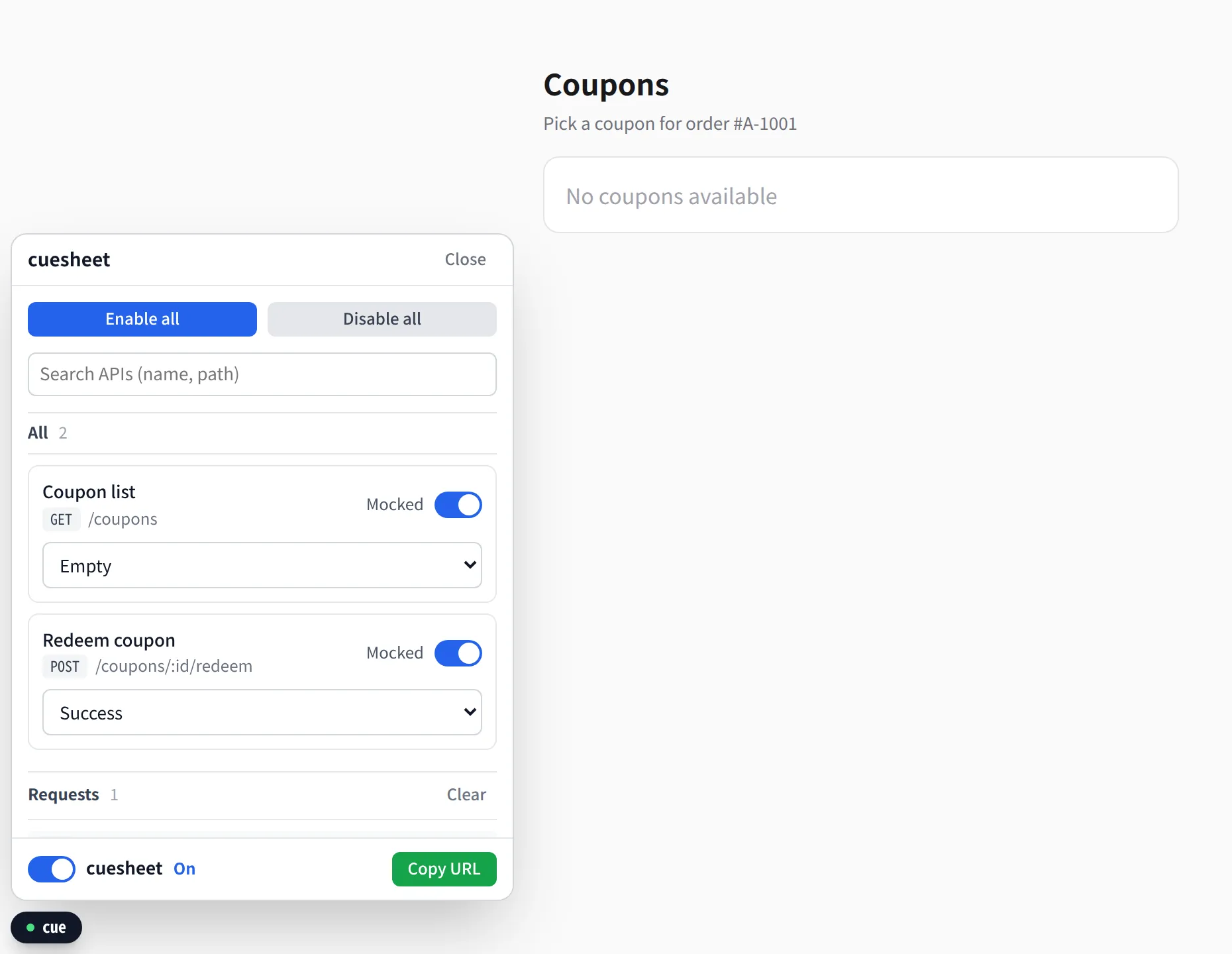
A change to the state applies from the next request, so the app is wired to refetch its data when you change the situation in the panel.
I load cuesheet only on the dev server and keep it out of prod builds. The situation you pick only applies inside your own browser tab, so even on a shared dev server, QA opening an error situation doesn’t change anyone else’s screen. To see the real dev API, turn it off in the panel or open the page with ?cue=off.
Now the AI checks the screen itself
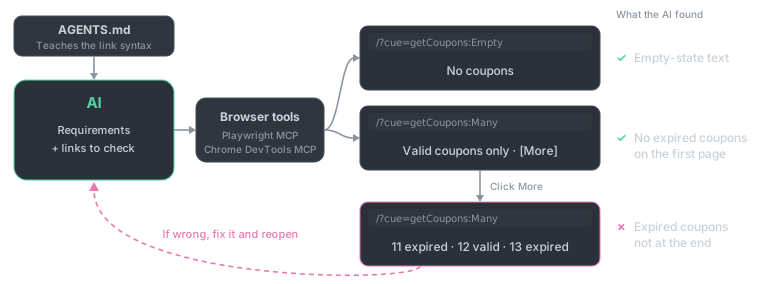
I’ve given the AI Playwright MCP and Chrome DevTools MCP. Both let the AI open a browser, read the screen and click on it. Figma MCP lets the AI read the design; these tools and the links let it see how the screen behaves across situations. For the link syntax, point your project’s agent instructions at the agent guide that ships in the cuesheet package (node_modules/cuesheet/AGENTS.md) and the AI takes it from there.
Now when I hand the AI a feature, I give it the situations to check along with the requirements. Say the fuzzy expired-coupon ordering from earlier was settled with the PM as “behind the More button,” and the Many scenario has fifteen coupons, three of them already expired. Then I’d hand it over like this.
Add "move expired coupons to the end" to the coupon list. Keep expired coupons out of the first ten; put them behind More.
When you're done, open the links below to check, and run the existing tests too.
- /?cue=getCoupons:Empty    check that the empty-state text shows
- /?cue=getCoupons:Many     no expired coupons in the first ten; after More, the three expired ones come last
After writing the code, the AI opens the links one by one, reads the screen, clicks More, and checks for itself. When something’s wrong it fixes it and opens them again. The loop inside the “write code” box in the first diagram, which used to stop at tests and type checks, now reaches the actual screen.
I took care of a few things so the AI doesn’t get lost.
-
The AI can ask what it’s allowed to change.
window.__cuesheet__.getCatalog()returns every API and its scenarios, so there’s no digging through the app’s code. -
A wrong name comes back with the valid ones. Type
EmptyasEmtpy, say, and the page still opens with just that entry skipped, leaving this warning in the console. Looking only at the screen you could miss that the wrong thing opened, but with Chrome DevTools MCP reading the console, the AI sees the warning, fixes the name and opens it again.[cuesheet] handler 'getCoupons' has no scenario 'Emtpy'. Available: OK, Empty, Many, Server error -
The same link sets up the same conditions. The scenario, delay, time and offline all live in the link, and unless the delay is given as a range, nothing is random. As long as we’re on the same app and handlers, the AI and I check the screen under the same conditions.
Once the checks pass, I have the AI add a test that opens the same link. The test uses the very handlers I develop against, so there are no separate test mocks to maintain.
await page.goto('/?cue=getCoupons:Empty')
await expect(page.getByText('No coupons')).toBeVisible()

await page.goto('/?cue=getCoupons:Many')
await expect(page.getByRole('listitem')).toHaveCount(10)
await expect(page.getByRole('button', { name: 'More' })).toBeVisible()
In practice, what this catches most is regressions. With several features in flight, fixing one thing breaks another screen, and the AI finds it first by reopening the existing links and running the tests.
My own job changed too. I used to bring up each screen one by one to find and check things; now I read what the AI checked and open only the screens I need.
Now I send a link instead of explaining
Links work between people just as well.
When QA asks “What does it look like with no coupons?”, I now send a link. Nobody has to set up the situation. And with the panel there, QA and designers try things out themselves: error screens, slow responses, even offline, all without a developer.

Bug reports changed too. QA clicks Copy URL in the panel and sends the link along.
The expired label on the coupon list looks wrong.
/?cue=getCoupons:Many,time:2026-03-01T00:00:00Z
Open the link and you see the screen with the reported scenario and time. There’s no need to ask how many coupons there were or when they saw it. After the fix, I send the same link back and ask them to check.
I use links with designers too. A design has separate frames for screens you rarely see, like the empty state, errors and loading. To get those reviewed I used to send screenshots, or share my screen and set up each situation one at a time. Now I send a link for each frame in the design.
Empty state  /?cue=getCoupons:Empty
Error        /?cue=getCoupons:Server error
Loading      /?cue=getCoupons:OK,delay:30000     (delays the response 30 seconds to show loading)
The designer opens the link and puts it next to the design. If something needs fixing, they send it back with the link. When they say “the icon and text are too close on this screen,” there’s no question which screen “this screen” is. It’s the same when the PM asks “What should this case look like?”: instead of explaining in words, I send a link and we talk while looking at that screen.
What’s left
Not everything is solved. A mock is still a mock. Scenarios are built from the agreed response shape, so if the real server answers differently, a screen that passed against the mock can still break. Integration testing against the real API is still needed. But with each scenario’s screen behavior already checked, integration can focus on what only shows up against the real API: authentication, permissions, the actual response shape.
Deciding which situations need checking, without missing any, is also still a person’s job. I review the AI’s list of scenarios myself for anything missing.
Wrapping up
AI made writing code faster, but the way we checked stayed the same, so the bottleneck moved to checking. Developers couldn’t reproduce situations and QA couldn’t check features, because the only way to change the situation was editing code.
Once situations had names and could be picked by link, two things changed. The AI checks the screen itself without touching the code, so development got faster; and people see the same screen from one link, so fewer messages go back and forth. The flow from the first diagram now looks like this.

You can try this approach right away with cuesheet. Keep the MSW handlers you already have; only the startup code changes. If you try it and something gets in your way, or you have an idea, please leave it in the issues.