Letting AI Verify on Real Phones: Attaching to a Phone's WebView from a Mac
· dev· 11 min read
At work I build an app with CapacitorJS. Screens built for the web go inside a native app’s WebView and ship as an app, so besides desktop web, the code I write runs in four more places.
| iPhone | Android | |
|---|---|---|
| Mobile web | Safari | Chrome |
| App | WKWebView | Android WebView |
For desktop web, opening the browser’s DevTools is enough. The trouble is these four. They all run inside a phone, and problems that appear when the keyboard comes up only show themselves when you check on the phone itself. An input gets hidden behind the keyboard, the screen gets pushed around, or a bottom button lands in the wrong place.
In my last post I wrote about handing screen checks to AI. This one is about making that happen on real phones. The AI does the checking, and I just leave the phone plugged in with a cable. The iPhone keyboard is the one exception, which I’ll explain later.
There were alternatives, but each had limits
There are already plenty of ways to check a phone screen from a Mac. I tried a few, and each had its limits.
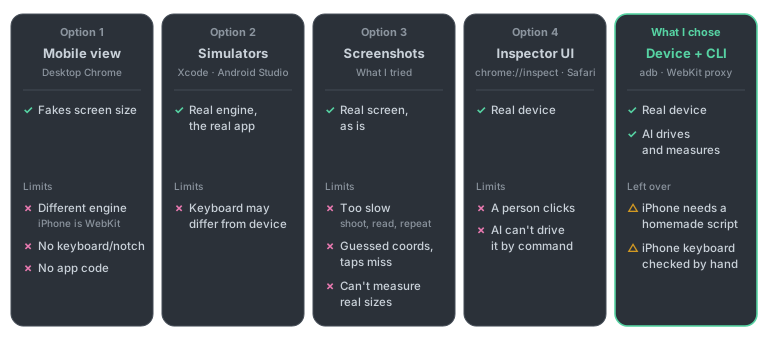
Option 1. A desktop browser’s mobile view
Chrome DevTools’ device mode only fakes the screen size and touch. Its limits are clear.
- Safari and app WebViews on the iPhone run on WebKit, while desktop Chrome is a different engine altogether.
- There’s no keyboard, and no safe areas like the notch or the home bar at the bottom.
- It isn’t a native app, so code that only runs in the app never runs at all.
Option 2. Simulators and emulators
The iOS Simulator in Xcode and the emulator in Android Studio run the app as is, on the real engine. They’re quite useful. But they fell short on the very thing I most wanted to check: the keyboard.
- By default, the iOS Simulator takes input from the Mac’s keyboard, so the on-screen keyboard doesn’t appear. Turn off the hardware keyboard connection and it does, but I found it hard to trust that it behaves exactly like a real device’s keyboard. Keyboard problems that looked fine in the Simulator still had to be checked again on a real device.
Option 3. Taking screenshots and showing them to the AI
Taking screenshots of the real device and showing them to the AI is something I did try. It’s a real device, so the keyboard really comes up. But it wasn’t good enough for verification.
- It’s too slow. Every check means taking a screenshot and having the AI read the image. Each time you press a button and check, the whole cycle runs again.
- Taps are imprecise. To press a button you tap screen coordinates, and since the coordinates are guessed from an image, it’s easy to tap the wrong spot.
- There’s no detail. An image only tells you a button is “roughly there.” You can’t measure a component’s actual height in px, or how many px the keyboard covers.
There are tools that do this approach better. mobile-mcp lets an AI read the list of on-screen elements (the accessibility tree) to get exact coordinates, and Maestro is a testing tool that finds elements by text or ID and taps them. They solve the coordinate-guessing problem.
I didn’t try them, though. Both look at the app from the outside, through the element list the OS exposes. What I wanted to check was the DOM and CSS inside the WebView. A component’s actual size in px, or how much of it the keyboard covers, is only accurate when measured from inside the web page.
Appium is a bit different. Switch its context to the WebView and it can work with the DOM, and on the iPhone it attaches to WebViews through the same WebKit remote debugging channel that Safari’s Develop menu uses. I didn’t try this one either. You have to install the Appium server and drivers, and on the iPhone build and sign WebDriverAgent, so it looked like a lot of setup. So I skipped Appium and attached to that channel directly.
Option 4. Inspectors made for people
With the real device connected by cable, you can open DevTools through chrome://inspect in Mac Chrome for Android, and through Mac Safari’s Develop menu for the iPhone. Since they attach to a real device, you can see keyboard problems too.
- But these are tools where a person opens a window and clicks. An AI can’t drive them repeatedly from the command line.
So: attach to the real device from the command line
I needed two things: a real device, and a command-line way to attach. A real device is what makes the keyboard behave like the real thing, and attaching from the command line is what lets the AI drive and check things itself. Once attached from the command line, you work with the elements inside the WebView directly, so you can pick exactly the element you want without guessing coordinates, and measure real sizes with getBoundingClientRect().
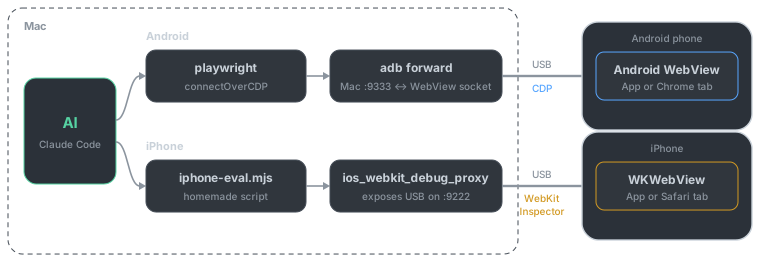
Android worked with existing tools. For the iPhone, I had to write a small script.
First: allow WebView debugging in the app
Mobile web (Safari and Chrome tabs) can be attached to right away, but a WebView inside an app only accepts a debugger if the app allows it.
// iOS 16.4+
webView.isInspectable = true
// Android
WebView.setWebContentsDebuggingEnabled(true)Turn this on only in dev builds, and keep it off in the prod build that goes to the store. With it on, any computer the phone has been allowed to connect to can run JS inside the app and look into its session and storage.
Android: open a port with adb, attach with playwright
Android WebViews speak the same debugging protocol as Chrome (CDP). Connect the debug socket inside the phone to a port on the Mac, and playwright attaches just as it does to desktop Chrome.
1. Turn on USB debugging
If the Mac doesn’t have adb yet, install it first: brew install android-platform-tools. Install a dev build with WebView debugging turned on onto the phone.
On the phone, go to Settings → About phone → Software information and tap Build number seven times to unlock Developer options (this is the Galaxy path; menu names vary a little by model). Turn on USB debugging in Developer options, connect the cable, and tap Allow when the phone asks “Allow USB debugging?”. You’re set once the device shows up as device in adb devices.
2. Find the WebView’s debug socket
With the app running, look up the socket name.
adb shell cat /proc/net/unix | grep devtools_remote
# ... @webview_devtools_remote_12345
An app WebView shows up as webview_devtools_remote_<pid>, and mobile Chrome as chrome_devtools_remote. The name includes the process ID, so it changes when you relaunch or reinstall the app. When that happens, redo this step and the next.
3. Connect it to a port on the Mac
adb forward tcp:9333 localabstract:webview_devtools_remote_12345Now 127.0.0.1:9333 on the Mac is the debugger for the phone’s WebView. The iPhone proxy below uses ports 9222–9240, so I picked 9333, outside that range, to keep them from colliding. Check that it’s connected with curl -s http://127.0.0.1:9333/json.
4. Attach with playwright
import { chromium } from 'playwright';

const browser = await chromium.connectOverCDP('http://127.0.0.1:9333');
// If there are several pages, pick one by page.url()
const page = browser.contexts()[0].pages()[0];

await page.getByRole('button', { name: 'Next' }).click();
await page.screenshot({ path: 'after.png' });
Clicking, typing, screenshots and network inspection all worked with the same playwright code I used on desktop. Tapping an input with playwright brings up the real keyboard, too.
For things the page itself can’t tell you, ask the OS. To check whether the keyboard is really up:
adb shell dumpsys input_method | grep mInputShown
# mInputShown=true means the keyboard is showing
Whether the keyboard covers an input is measured as a number from inside the page. If the bottom of the input is above the bottom of the visible area, it isn’t covered.
await page.evaluate(() => {
  const input = document.activeElement.getBoundingClientRect();
  const viewport = window.visualViewport;
  return { inputBottom: input.bottom, visibleBottom: viewport.offsetTop + viewport.height };
});
This comparison only means something when the WebView shrinks as the keyboard appears (adjustResize). If the WebView doesn’t shrink, the visible area stays the same size and the check always says “not covered.”
iPhone: run a proxy, attach with a homemade script
The iPhone doesn’t let you attach that directly. Its WebViews speak the WebKit Inspector protocol, not CDP, and playwright can’t attach to a real device over that protocol.
So I used ios_webkit_debug_proxy to expose the USB channel on a port on the Mac, and wrote a small script that runs JS through it. It opens up, from the command line, the same channel Safari’s Develop menu uses.
1. Setup
- On the iPhone, go to Settings → Apps → Safari → Advanced and turn on Web Inspector (on iOS 17 and earlier, it’s Settings → Safari → Advanced).
- Connect the cable and tap Trust when it asks “Trust This Computer?”.
- Install a dev build with WebView debugging turned on. My app turns debugging off in prod builds, so it won’t attach to TestFlight or App Store builds.
- Install the proxy:
brew install ios-webkit-debug-proxy
2. Start the proxy
ios_webkit_debug_proxy -c null:9221,:9222-9240 &
curl -s http://127.0.0.1:9222/json
You’re set once the app’s WebView appears in the /json list. Tabs open in Safari on the iPhone show up there too, so mobile web works the same way. If all you get is an empty [], the app isn’t running, the build has WebView debugging off, or Web Inspector is off.
3. You can’t just send it: wrapping in Target
At first I sent Runtime.evaluate as is, like I would over CDP, and all I got back was 'Runtime' domain was not found. Since iOS 12.2 the WebKit Inspector works per Target, so each command has to be wrapped once in an envelope called a Target message.

- On connect, a
Target.targetCreatedevent delivers atargetId. - Turn the real command into a JSON string and send it inside
Target.sendMessageToTarget. - The result comes back as a string again, inside a
Target.dispatchMessageFromTargetevent.
Here’s the script that handles it. It uses the built-in WebSocket, so it needs Node 22+ or Bun.
// iphone-eval.mjs
// Usage: node iphone-eval.mjs '<JS expression>' [text contained in the URL]
const [expression, urlPart = ''] = process.argv.slice(2);
if (!expression) {
  console.error("Usage: node iphone-eval.mjs '<JS expression>' [part of URL]");
  process.exit(2);
}

let pages;
try {
  pages = await (await fetch('http://127.0.0.1:9222/json')).json();
} catch {
  console.error("Can't reach the proxy: start ios_webkit_debug_proxy first");
  process.exit(1);
}
const page = pages.find((p) => p.webSocketDebuggerUrl && p.url.includes(urlPart));
if (!page) {
  console.error('No page to attach to: check the app is running, WebView debugging, and Web Inspector');
  process.exit(1);
}
console.error(`Target: ${page.url}`);

const ws = new WebSocket(page.webSocketDebuggerUrl);
let targetId;

// Turn the real command into a string and put it in a Target envelope
function sendToTarget(id, method, params) {
  ws.send(JSON.stringify({
    id,
    method: 'Target.sendMessageToTarget',
    params: { targetId, message: JSON.stringify({ id, method, params }) },
  }));
}

// After connecting, wait for the Target.targetCreated event.
// In my setup, the event only came reliably after sending one command.
ws.onopen = () => ws.send(JSON.stringify({ id: 1, method: 'Target.exists' }));

ws.onmessage = (event) => {
  const message = JSON.parse(String(event.data));

  if (message.method === 'Target.targetCreated' && !targetId) {
    targetId = message.params.targetInfo.targetId;
    sendToTarget(10, 'Runtime.enable', {});
    sendToTarget(11, 'Runtime.evaluate', { expression, returnByValue: true });
    return;
  }

  // The result is also a string inside an envelope
  if (message.method === 'Target.dispatchMessageFromTarget') {
    const inner = JSON.parse(message.params.message);
    if (inner.id === 11) {
      console.log(JSON.stringify(inner.error ?? inner.result, null, 2));
      process.exit(inner.error || inner.result?.wasThrown ? 1 : 0);
    }
  }
};

ws.onerror = () => {
  console.error('WebSocket connection failed: check the page is still open');
  process.exit(1);
};

setTimeout(() => {
  console.error('timeout');
  process.exit(1);
}, 10_000);
4. Run JS
# Which screen am I on?
node iphone-eval.mjs '({ url: location.href, title: document.title })'

# Press a button without touching the device
node iphone-eval.mjs '(() => {
  const button = [...document.querySelectorAll("button")].find((b) => b.textContent.includes("Next"));
  button?.click();
  return button ? "clicked" : "not found";
})()'
Pass part of a URL as the second argument to pick that page. The script prints the address of the page it attached to first, so when a Safari tab and the app are both open, you can tell right away if it picked the wrong one.
What you pass is easiest to work with as an expression that ends in a single value. To use return, wrap it in (() => { ... })(), and wrap objects in parentheses like ({ ... }). When you’re done, stop the proxy with pkill -f ios_webkit_debug_proxy.
Limits of this approach
It’s not as convenient as playwright. All the script does is run JS, so even clicks are done in JS, like button.click(). click() isn’t a real touch, so it fires even when the button is covered by another element. Whether a spot can actually be tapped is checked by measuring sizes and positions separately. The script doesn’t take screenshots either; screens are checked through DOM text and element sizes.
The biggest limit is that you can’t bring up the keyboard from code. On iOS, focus() alone won’t raise the keyboard unless the user taps. So checking the iPhone keyboard is the one job I kept for myself. The AI sets up the state, navigates to the screen where the keyboard needs checking, and sends me an alert. Then I tap the input and check it myself.
Handing it to AI
At this point the AI can work with real devices directly. Give the AI the commands above and the requirements, and it checks in this order.

State comes from mocks. You can’t log in with a real account and set up data every time. I fake API responses with MSW, and I’ve set up the app so that when a mock session and scenario settings are in localStorage, it reads them and returns mock responses. So setting up any situation takes a few lines of localStorage.setItem(...), and it works the same on Android and iPhone.
Verdicts come from numbers. Not “the keyboard seems to be up” or “the button looks fine,” but whether mInputShown=true, and whether the bottom of the input is within the visible area, as numbers. When the result is a number, the AI doesn’t get confused.
I used playwright code for Android too, but there’s a way to skip writing code. Start Playwright MCP with the --cdp-endpoint http://127.0.0.1:9333 option, and the AI can attach straight to the port adb opened and work with the phone’s WebView like a desktop browser.
Be careful
Being able to run JS in a WebView means having your hands directly on that app’s session and storage. Take extra care when an AI is doing it.
- Use it only on test devices and dev builds. Don’t attach to a device logged into a real customer account, or to a prod build.
- Build state with mocks whenever you can, and have a person check before the AI does anything that sends write requests to the real dev server.
Summary
| Android device | iPhone device | |
|---|---|---|
| Channel | adb forward |
ios_webkit_debug_proxy |
| Client | playwright connectOverCDP |
Homemade script |
| What you can do | Drive, measure and screenshot web screens | Run JS (and drive and measure with it) |
| Keyboard check | The AI does it (dumpsys input_method) |
The AI alerts → I check |
| Watch out for | Reconnect the port after relaunching the app | No keyboard from code; clicks are JS clicks |
If you have problems that only show up on real devices, like the keyboard, plug in a phone and hand it to an AI.